














































My WordPress Site Is Hacked Here’s What to Do Right Now (and Who to Call)
If your WordPress site is hacked — you’re seeing strange redirects, a Google warning, or content you didn’t post — here’s the short version: disconnect it from public view or switch on maintenance mode, change every password tied to it (WordPress, hosting, FTP, database), and don’t touch anything else until you’ve read the checklist below. A hacked WordPress site can almost always be fully recovered — the damage is rarely as bad as it feels in the first ten minutes.
In the hacked-site cleanups we handle at Seerox, this is the exact sequence we follow, written so you can do the first, most important steps yourself in the next 30 minutes.
Your First 30 Minutes: Emergency Checklist
Do these in order, before you start investigating or reading further. Speed matters more than perfection right now.
1. Put the site in maintenance mode (don’t delete anything)
Use a maintenance-mode plugin, or ask your host to enable a ‘coming soon’ page. This stops the malware from serving content to visitors or search engines while you work — deleting files at this stage can destroy evidence you’ll need later.
2. Change your WordPress admin password
From wp-admin if you can still log in, or via your database (wp_users table) if you can’t.
3. Change your hosting account password
This is separate from WordPress and is often the account attackers actually want.
4. Change FTP/SFTP and database (phpMyAdmin) passwords
Any credential that touches your files or database should be treated as burned.
5. Call or message your host’s support line
Tell them plainly: ‘my WordPress site has been compromised.’ Ask them to check server logs and confirm whether other sites on the same server/account are affected.
6. Take a full backup of the site as-is, malware included
Label it clearly as an infected backup. You need this for forensic reference even though you won’t restore it.
7. Note the time you first noticed the problem
This detail matters when you’re picking which backup to restore from later.
Not sure you’re doing this right? Get a second pair of eyes — free
If you’ve made it through the checklist and you’re still not sure how bad the damage is, Seerox will check your site for free: a full health scan plus one bug fixed at no cost, so you know exactly what you’re dealing with before you spend another minute (or dollar) on it.
How to Know for Sure Your WordPress Site Has Been Hacked
Sometimes it’s obvious. Sometimes the only sign is a drop in traffic or a strange email from a customer. Common signs we see in the sites we clean up:
- Your site redirects visitors to spam, gambling, or pharmacy pages — especially on mobile.
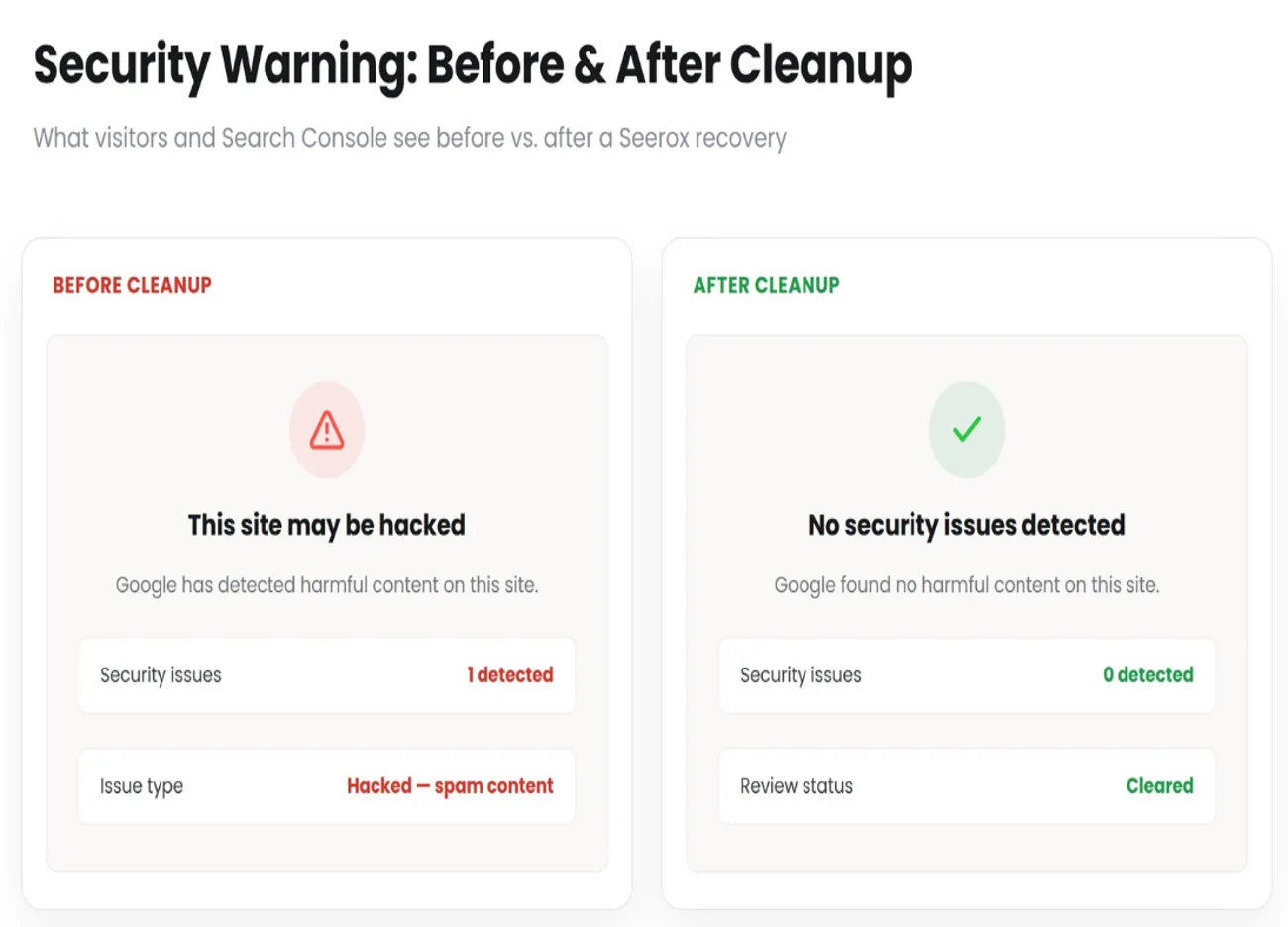
- Google Search Console shows a “Security Issues” warning, or Chrome shows a red “This site may be hacked” screen.
- Admin users you didn’t create appear in Users → All Users.
- Your hosting CPU usage spikes for no reason, or your host suspends the account for “abuse.”
- Search results for your site show pages you never wrote — usually spammy pharmacy, casino, or counterfeit-goods keywords (this is called a “pharma hack” or “Japanese keyword hack”).
- Antivirus software flags your site as dangerous when customers try to visit.
- Unusual outbound emails are being sent from your server (a classic sign of a spam-bot backdoor).
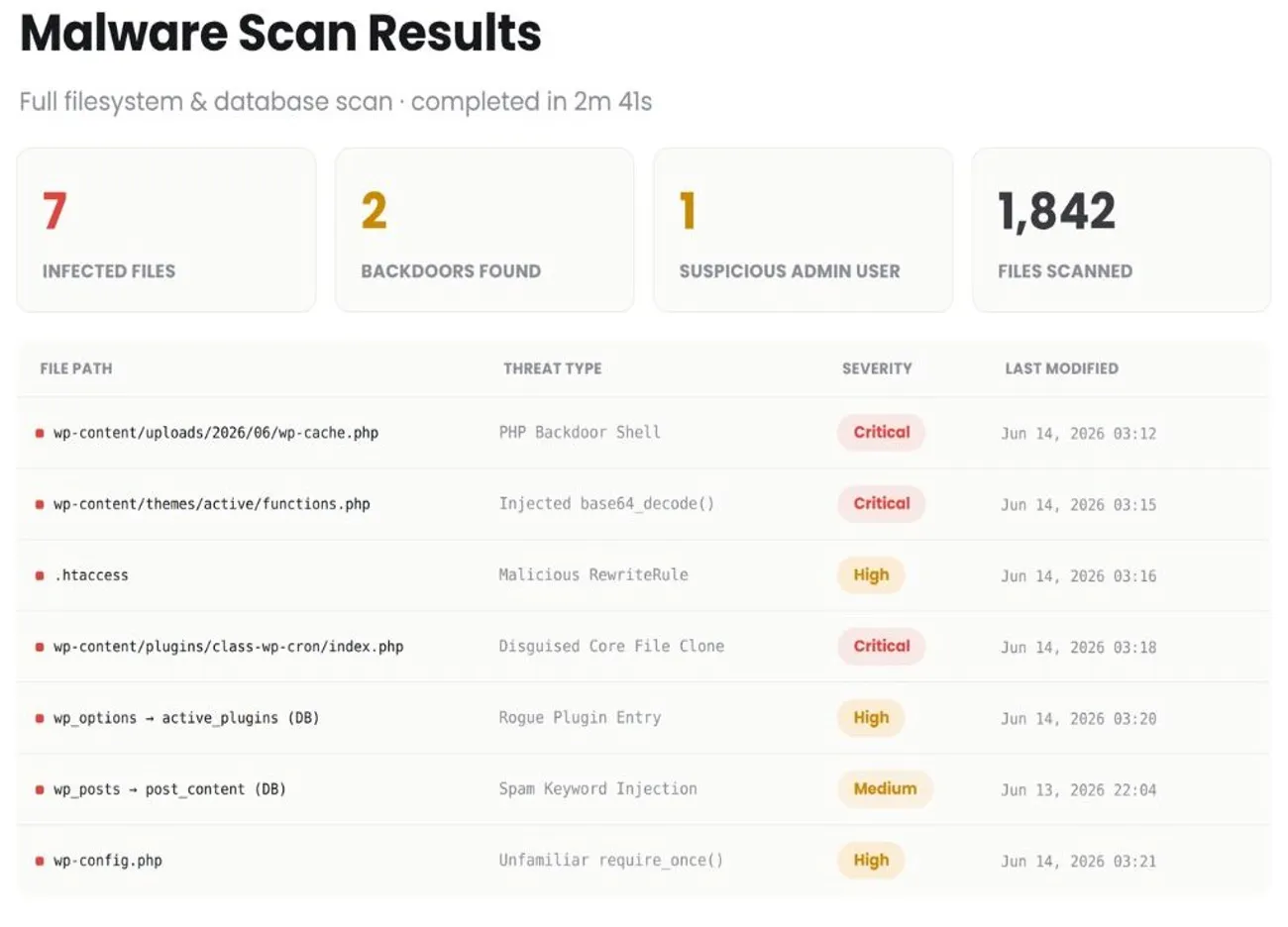
- Files you didn’t create show up in wp-content/uploads or your theme folder, often named to look like core files (e.g. wp-cache.php, class-wp.php in the wrong directory).
If you see any combination of these, treat it as confirmed and move to the recovery process below — waiting to be 100% sure almost always makes the cleanup bigger.
The Full Step-by-Step WordPress Recovery Process
This is the sequence we use on real client sites. It goes deeper than the emergency checklist because the goal here isn’t just to stop the bleeding — it’s to find and remove every trace of the attacker, including backdoors that let them back in after a surface-level clean.
Step 1: Isolate and preserve evidence
Before changing anything, copy the entire site (files and database) to a separate location, clearly labeled as infected. If this ever needs a forensic review, or if you need to prove to a payment processor or customers what happened, you’ll want the original state preserved.
Step 2: Audit every user account
Go to Users → All Users in wp-admin. If the dashboard itself is compromised or inaccessible, connect via phpMyAdmin and query the wp_users and wp_usermeta tables directly — attackers sometimes insert admin accounts straight into the database so they never appear through normal channels that get logged. Delete every account you don’t recognize, then reset passwords for everyone who remains.
Step 3: Identify the entry point
You can’t secure a site if you don’t know how the attacker got in. Check, in order:
- Outdated plugins or themes (check each one’s changelog against your installed version —this is the entry point in some cases we see, based on our WooCommerce cleanup history.).
- Nulled or pirated themes/plugins, which frequently ship with a backdoor already built in.
- Weak or reused admin passwords (check for these in a breach database like Have I Been Pwned).
- Vulnerable custom code or an old, unmaintained custom plugin.
- Server-level compromise, if other sites in the same hosting account are also infected.
Step 4: Find recently modified files
If you have SSH or terminal access, this single command finds every file modified in the last 7 days — almost always where the malware lives:
find /path/to/wordpress -type f -mtime -7 -lsCross-reference the results against your last known-clean deploy or backup date. Anything you didn’t personally add or update is a suspect.
Step 5: Scan for injected code
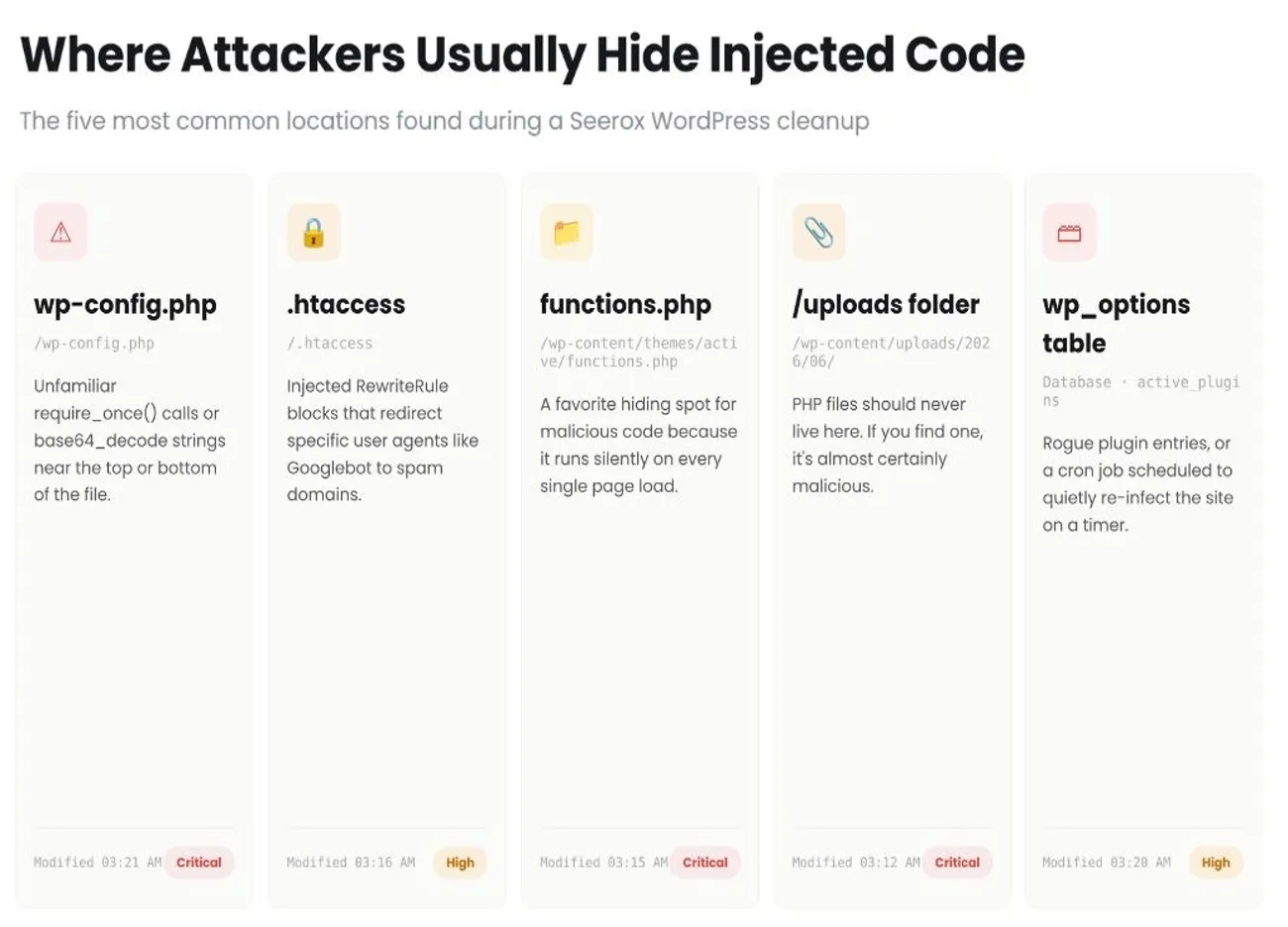
Malicious code is usually hidden in one of a few predictable places:
- wp-config.php — check for unfamiliar require_once calls or base64_decode strings near the top or bottom of the file.
- .htaccess — look for injected RewriteRule blocks that redirect specific user agents (like Googlebot) to spam domains; this is the classic cause of “redirecting to spam” symptoms.
- theme functions.php — a favorite hiding spot because it runs on every page load.
- wp_options table — check for rogue entries under active_plugins, or a cron job (wp_cron) scheduled to re-infect the site on a timer.
- Uploads folder — PHP files should never live in wp-content/uploads; if you find one, it’s almost certainly malicious.
Step 6: Remove the malware — restore or manually clean
If you have a clean backup from before the infection date: restoring it is faster and safer than manual cleanup. Confirm the backup predates the first sign of compromise, and re-check for backdoors afterward — a backdoor can sit dormant in a backup for weeks.
If you don’t have a clean backup: reinstall WordPress core from a fresh download at WordPress.org, replacing every core file. Then either reinstall each plugin and theme fresh from the official source, or diff each file against the original plugin/theme package to isolate the injected code. If you’re on WP-CLI, wp core verify-checksums and wp plugin verify-checksums will flag any core or plugin file that’s been tampered with.
Step 7: Clean the database
Search wp_posts and wp_options for injected spam links, hidden iframes, or encoded script(look for base64_decode, eval, gzinflate, or unfamiliar < script > tags).. Remove any pharma/spam keyword content that was injected into post titles or content.Step 8: Reset everything, again
After cleanup, reset every password a second time — WordPress, hosting, database, FTP, and any API keys or secret keys in wp-config.php (AUTH_KEY, SECRET_KEY, and related salts). This invalidates any session cookies the attacker may still hold, even ones created after your first password reset.Step 9: Re-scan before going live
Run at least one dedicated malware scan after cleanup, ideally from a tool separate from whatever you used to detect the infection. Don’t take the site out of maintenance mode until this comes back clean.My Site Is Redirecting to Spam, or Google Says “This Site May Be Hacked” — What That Means
These are two of the most common ways people discover they’ve been hacked, and they usually point to the same root cause: injected code in your theme, .htaccess file, or database that only activates for certain visitors (often mobile users or search engine crawlers), which is why you might not see it yourself when you check the site on desktop.
If you’re being redirected to spam: check .htaccess and your active theme’s header/footer files first — this is where redirect scripts almost always live. Clear all caching (plugin cache, browser cache, and any CDN like Cloudflare) after cleaning, since a cached copy of the malicious redirect can persist and make you think the fix didn’t work.
If Google flagged you in Search Console: go to Security Issues under the Security & Manual Actions section, note exactly what Google says was found (malware, deceptive content, or hacked-type spam), fix that specific issue, then submit a review request from the same panel. Google’s own documentation on interpreting and resolving security issues walks through what each warning type means.
Timeline to expect: Google typically reviews requests within a few days, though it can take up to a week in busier periods. Getting the red warning screen removed is usually the WordPress.org’sfast part — recovering your search rankings and traffic to pre-hack levels can take anywhere from two weeks to a few months, depending on how long the site was compromised and how much spam content Google indexed in the meantime.
Redirect won’t go away, or still blacklisted after cleanup?
Cached redirects, hidden backdoors, and re-infections are the most common reasons a “cleaned” site gets flagged again within days. Have Seerox take a free look — you’ll get a full site health check and one issue fixed at no charge, so you’re not guessing whether it’s actually clean.
Should You Clean It Up Yourself, or Call a Professional?
Both are legitimate options. The honest answer depends on four things: how comfortable you are in a codebase and a database, how much your downtime is costing you, whether the site takes payments, and whether this is a first offense or a repeat infection.| Situation | DIY Restoration | Professional Cleanup |
|---|---|---|
| Simple site, no ecommerce, you have a clean recent backup | Yes — restore and harden | Not necessary |
| You can’t find where the malware is hiding after an hour of looking | Not recommended | Yes — backdoors are easy to miss and re-infect fast |
| Site processes payments (WooCommerce, memberships, donations) | Not recommended | Yes — data exposure and PCI implications raise the stakes |
| This is a repeat infection | Not recommended | Yes — something wasn’t fully removed the first time |
| You’re on a deadline / losing sales every hour it’s down | Possible, but slower | Yes — professionals typically clean same-day |
| You’re comfortable with SSH, WP-CLI, and reading PHP | Yes | Optional — useful as a second opinion |
What Does WordPress Malware Removal Actually Cost?
Pricing depends heavily on how the infection is scoped and how long it’s been active — a same-day restore from a clean backup is a very different job from a deep forensic cleanup with multiple backdoors.
Here’s what typically drives the cost up or down:
How fast it was caught — an infection caught within 24–48 hours with a clean backup available is usually the fastest and cheapest to fix.
How deep the infection goes — multiple injected files, no reliable backup, or a full core reinstall all add time and cost.
How long the attacker had access — long-running, blacklisted, multi-backdoor infections require deeper forensic work and cost more.
Turnaround time — same-day or emergency cleanup typically carries a priority surcharge over standard turnaround.Because every infection is different, we don’t publish flat pricing — contact us with a quick look at your error logs and file timestamps, and we’ll give you an accurate quote for your specific situation.
WooCommerce & Ecommerce Sites: Extra Steps You Can’t Skip
If your hacked site processes orders, the stakes are higher than a content site, and the recovery checklist above isn’t enough on its own. This is the section most generic hacked-site guides skip entirely.
Need help with a WooCommerce hack?
Seerox specializes in WooCommerce cleanups — get in touch and we’ll get your store back online safely.
Was customer data actually exposed?
Check what data your store actually stores before assuming the worst:- If you use Stripe, PayPal, or another PCI-compliant gateway with tokenized checkout, raw card numbers were likely never on your server — the gateway holds that data, not WooCommerce.
- If you store any card data locally, via an older or misconfigured payment plugin, treat that as compromised and notify your payment processor immediately.
- Check wp_postmeta and any custom order tables for anything that looks like stored card numbers, CVVs, or unencrypted personal data — this should never be present with a modern setup, but older or customized stores sometimes have legacy fields.
- Review recent orders for signs of fraud: unfamiliar shipping addresses paired with high-value orders, multiple failed payment attempts in a short window, or orders placed in bulk with mismatched billing/shipping details.
What to tell your customers
If personal or payment data may have been exposed, transparency protects you more than silence does. A short, direct email works best:- What happened, in plain language, without technical jargon.
- What data may have been affected (or that you’ve confirmed none was, if payment data stayed with your gateway).
- What you’ve already done to fix it.
- A concrete recommendation: reset their account password, and watch their card statement if payment data may be involved.
Talking to your payment gateway
Contact Stripe, PayPal, or your processor directly and tell them your site was compromised — even if you believe card data wasn’t touched. They can flag your account for elevated fraud monitoring and tell you whether any suspicious transaction patterns showed up on their end during the window you were compromised.WooCommerce-specific hardening after cleanup
- Update WooCommerce and every extension — outdated WooCommerce extensions are one of the most common entry points we see, more than WordPress core itself.
- Remove any payment plugin that isn’t from an official, actively maintained source.
- Enforce strong passwords and 2FA for every Shop Manager and Administrator account, not just the main admin.
- Review API keys under WooCommerce → Settings → Advanced → REST API and revoke any you don’t recognize.
- Set up transaction monitoring or fraud-detection rules with your gateway going forward.
How to Prevent Reinfection: Hardening Checklist
Cleaning the malware and hardening the site are two different jobs — skip the second one and you’re likely to be back here within a few months. This is the checklist we run on every site after a cleanup:- Update WordPress core, every theme, and every plugin — then keep them updated on a schedule, not “whenever I remember.”
- Remove any plugin or theme you’re not actively using, including deactivated ones sitting in the file system.
- Enforce strong, unique passwords and two-factor authentication for every user with publishing or admin access.
- Install a web application firewall (WAF) to block malicious requests before they reach WordPress.
- Disable file editing from wp-admin by adding define(‘DISALLOW_FILE_EDIT’, true); to wp-config.php.
- Limit login attempts and rename or protect your login URL from automated brute-force bots.
- Set correct file permissions (typically 644 for files, 755 for directories) and lock wp-config.php further where your host allows.
- Schedule automated, off-site backups — the single biggest factor in how fast and cheap your next recovery will be, if there is one.
- Run scheduled malware scans, not just a one-time check after this incident.
Frequently Asked Questions
How do I know if my WordPress site has been hacked?
Common signs include unexpected redirects to spam or gambling sites, a “Security Issues” warning in Google Search Console, unfamiliar admin users, sudden traffic or ranking drops, spammy pages appearing in Google’s index for your domain, and antivirus warnings when visitors try to load your site. If you see any of these, run a malware scan immediately rather than waiting to confirm every symptom.
Can I fix a hacked WordPress site myself?
Yes, if you’re comfortable working with files, a database, and (ideally) SSH access, and the site doesn’t process payments. The process involves auditing users, finding the entry point, removing malicious code from core files and the database, and reinstalling clean copies of WordPress, your theme, and plugins. If the site is an ecommerce store, has been reinfected before, or you can’t locate the source after an hour or so of looking, professional cleanup is usually faster and safer..
How much does it cost to fix a hacked WordPress site?
Typical cleanup costs range from about $200 for a simple, quickly caught infection with a clean backup available, up to $3,000 or more for a severe, long-running infection with multiple backdoors and a blacklist to clear. Same-day emergency service usually adds a 50–100% surcharge over standard turnaround.
How long does it take to get off Google's blacklist after cleaning malware?
Google typically reviews a security review request within a few days, though it can occasionally take up to a week. That clears the red warning screen and Search Console flag. Recovering your search rankings and traffic back to pre-hack levels usually takes longer — anywhere from two weeks to a few months, depending on how long the site was compromised.
Will hackers steal my WooCommerce customers' credit card information?
It depends on your setup. If you use a PCI-compliant gateway like Stripe or PayPal with tokenized checkout, raw card numbers are typically never stored on your WordPress server, so they’re not directly exposed even in a hack. If you’re on an older or misconfigured payment setup that stores card data locally, treat that as a likely exposure, notify your payment processor immediately, and consider your legal notification obligations under laws like GDPR or the CCPA.
Get Expert Eyes on the Damage — Free
A hacked site is stressful, and it’s easy to either panic-spend on the first service you find or under-react and get reinfected within weeks. Before you do either, get a professional assessment of what’s actually going on.Free Site Health Check + 1 Bug Fix
Seerox will run a full health check on your WordPress or WooCommerce site and fix one bug at no cost — so you know exactly how bad the damage is, what it’ll take to fix, and whether you can safely DIY it or need a professional cleanup, before you spend a dollar.
Already know you want ongoing protection so this doesn’t happen again? See how our WordPress maintenance plans cover security monitoring, backups, and updates as a standing service, so your site stays hack-free going forward.